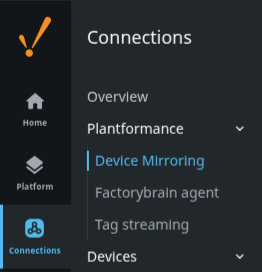
To Install the .modl File
-
Download the latest
.modlfile from [Link/Repository]. -
Log into the Ignition Gateway Webpage.
-
Navigate to Config > System > Modules.
-
Scroll to the bottom and click Install or Upgrade a Module.
-
Choose the
.modlfile and click Install. -
Accept the certificate if prompted
Sequence
Because of the complex nature of the Device Mirroring module, here is a high-level synthesis of the end-to-end setup process for the Device Mirroring module.
1.Install and Sequence:
Install the exact same build of the Device Mirroring module on both Ignition gateways.
The golden rule for configuration is Receiver first, Sender second.
2.Initialize the Receiver:
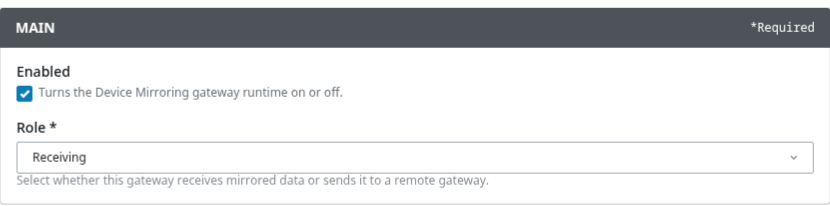
On the destination gateway, enable the module and set the role to Receiving. This opens the websocket endpoint to listen for incoming connections.
3.Configure and Filter the Sender:
On the source gateway,
-
Enable the module
-
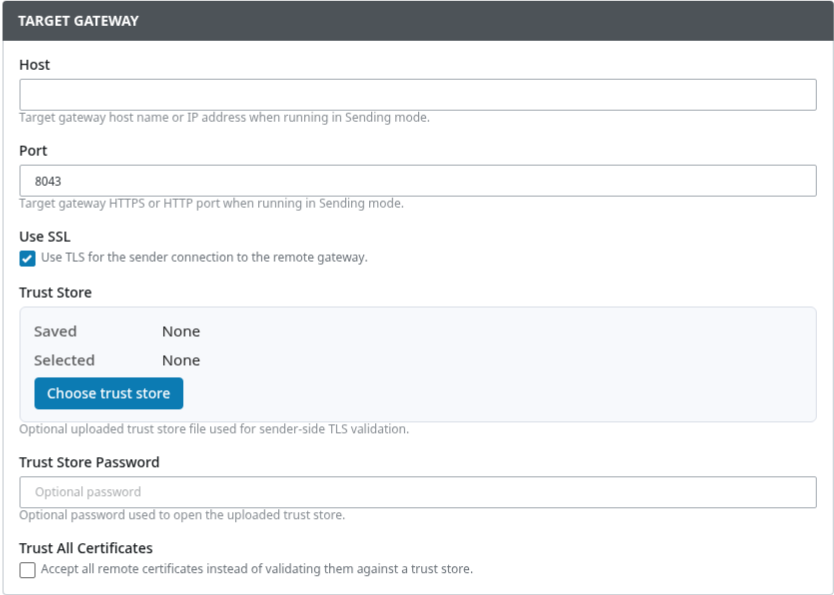
In the Target Gateway section, configure the sender connection:
-
Enter the receiver gateway host name or IP address in Host.
-
Set Port to the receiver gateway HTTPS or HTTP port, most common 443 or 8080.
-
Enable Use SSL when connecting over TLS.
-
If TLS validation is required, click Choose trust store and upload the trust store file.
-
Enter the Trust Store Password if the uploaded trust store is password protected.
-
Use Trust All Certificates only for testing, or when you explicitly want to accept the remote certificate without validating it against a trust store.
-
-
Enable mirroring of OPC UA Devices and Connections.
-
(Optional) set up Whitelists and Blacklists for OPC UA Devices and Connections. Leave blank to allow all.
You must blacklist any device on the sender that shares a name with an existing connection on the receiver to prevent duplicate-name errors.
5.Approve the Sender:
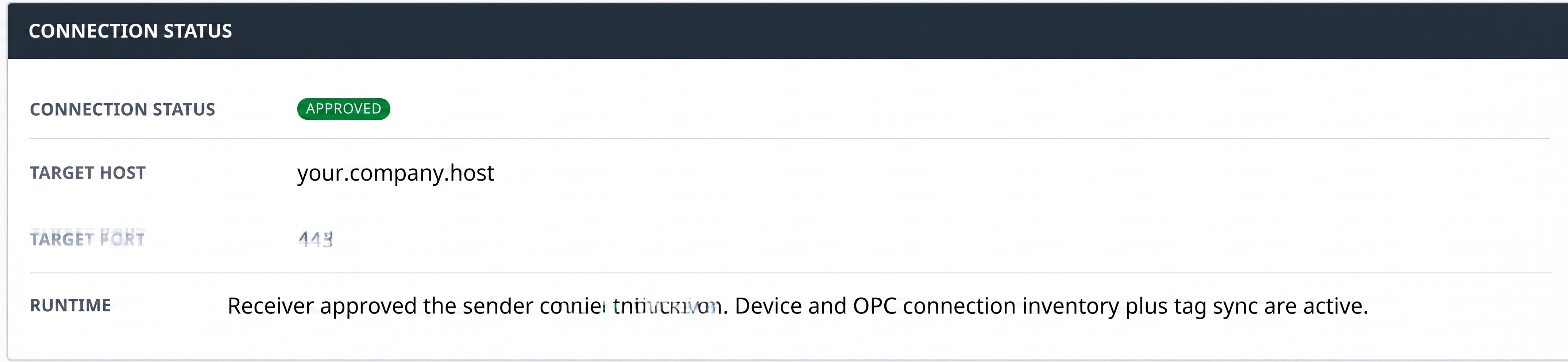
Return to the receiver gateway's Plantformance Device Mirroring Status page.
-
Locate the pending sender connection on the General tab
-
Click Approve to establish the mirrored session.

6.Verify Connections:
Check the status tabs on both gateways to confirm that the mirrored devices and external OPC UA client connections are successfully communicating.