
Device Mirroring copies live OPC data from one Ignition gateway to another so the receiving gateway can expose mirrored, read-only resources that behave like local OPC items for browsing and reading.
Intended use: In most cases, Device Mirroring is used between production and development environments, including upgrade preparation scenarios such as mirroring from Ignition 8.1 production to Ignition 8.3 development.
|
Document details |
Value |
|---|---|
|
Last change date / version |
/ 1.0 |
|
Authors |
Izidor Felicijan, Patrik Pusnik |
Summary
-
Introduction
-
Requirements and Compatibility
-
What gets Mirrored
-
Gateway Pages
-
Setup Order
-
Receiver Setup
-
Sender Setup
-
SSL And Certificates
-
Device Mirroring Filters
-
OPC Connection Mirroring Filters
-
Approving A Sender
-
Verifying Mirroring
-
Reading Mirrored Values
-
Reset And Resync
-
Restart And Disconnect Behavior
-
Troubleshooting
-
Current UI Limitation
Introduction
This manual describes how to use the Ignition Device Mirroring module with one gateway acting as a sender and another gateway acting as a receiver.
Device Mirroring copies live OPC data from the sending gateway to the receiving gateway. The receiver creates local, read-only mirrored resources so users can browse and read the values from the receiver as if they were local OPC items.
In most cases it is intended for usage in production vs development environments.
Requirements and Compatibility
Modules have a version compatible with Ignition 8.1 and a version compatible with 8.3.
Both are compatible with each other in a setting where an Ignition 8.1 gateway acts as sender to Ignition 8.3.
This makes it very convenient for preparation to upgrade from Ignition 8.1 to Ignition 8.3. It makes it possible for business to run Ignition 8.1 in production while all device connections are replicated on a development instance with Ignition 8.3.
What gets Mirrored
The module can mirror two categories of OPC data:
-
OPC UA devices from the sender gateway. The receiver creates matching Plantformance Virtual Mirrored Device resources.
-
OPC UA client connections from the sender gateway. The receiver creates local mirrored OPC connections that point to loopback OPC UA servers hosted by the module.
The sender mirrors values that are already present in Ignition's OPC subscription model. In practice, the source OPC items must be actively subscribed by Ignition tags, clients, or another active workflow on the sender. The module follows those subscriptions and batches value changes to the receiver.
Gateway Pages
Use these Ignition gateway pages on both gateways:
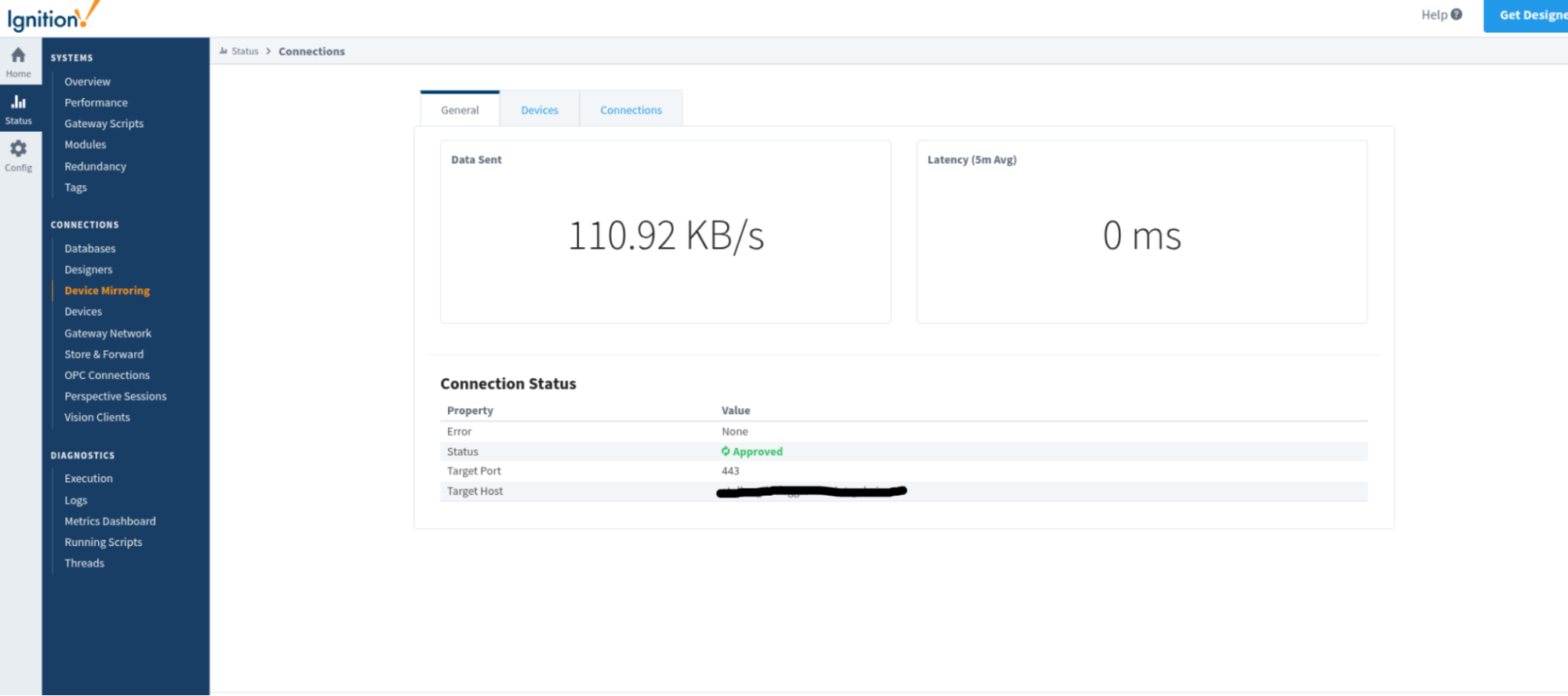
Ignition 8.1
-
Settings: Configuration -> Device Mirroring -> Settings

-
-
Status: Services -> Plantformance -> Device Mirroring Status
-
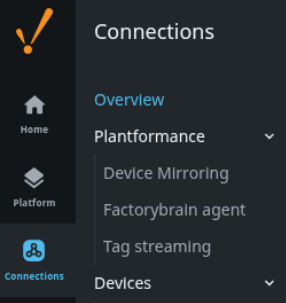
Ignition 8.3
-
Settings: Connections -> Plantformance -> Device Mirroring
-
Status: Services -> Plantformance -> Device Mirroring Status
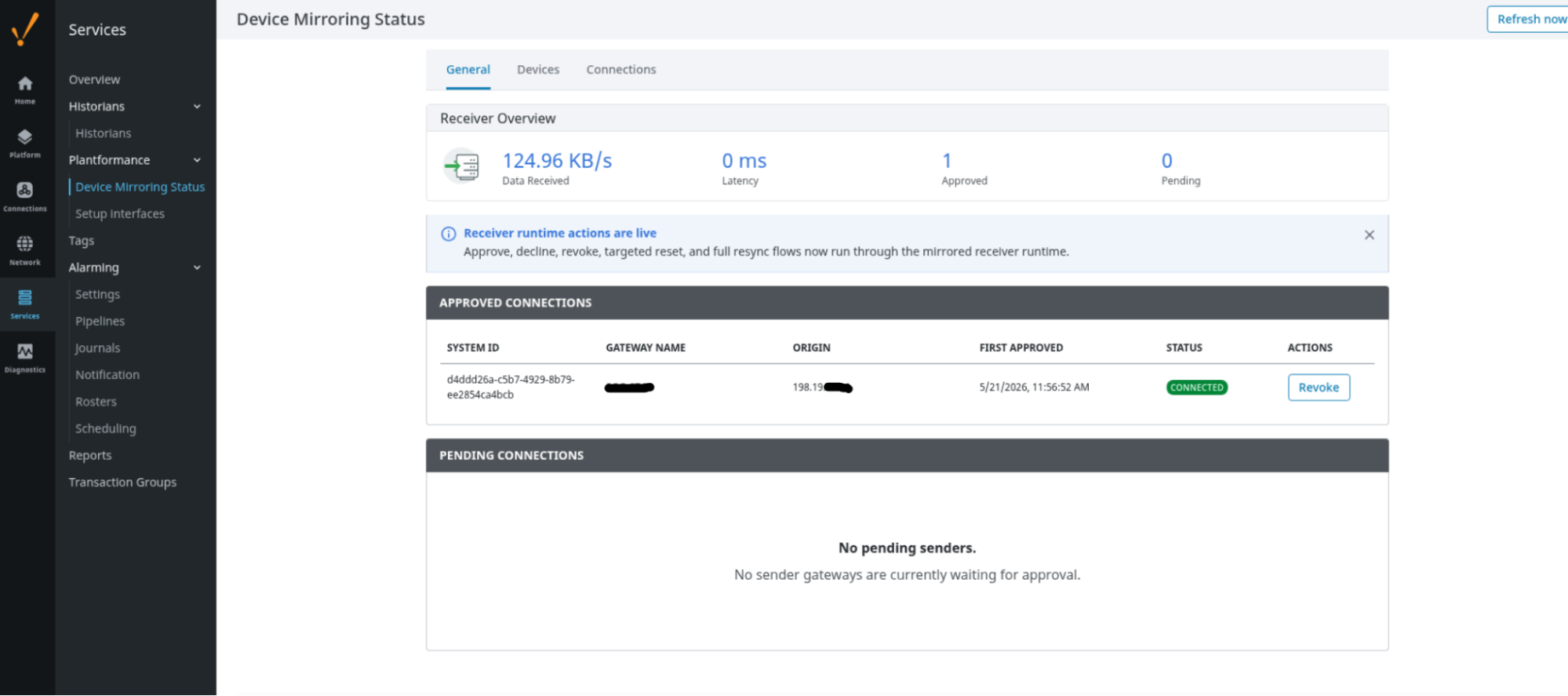
Users need read permission to view the status page. Save operations, approval actions, revoke actions, and reset/resync actions require write permission. The status page hides action buttons when the current user does not have a write-like permission, but backend permission checks are still enforced.
Setup Order
Configure the receiving gateway first, then configure the sending gateway.
-
Install the same Device Mirroring module build on both Ignition gateways.
-
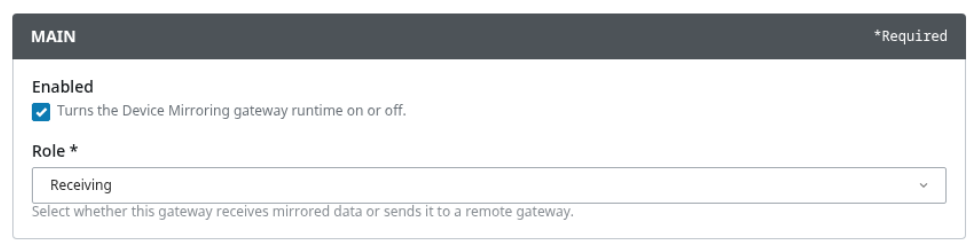
On the receiver, enable the module in Receiving mode.
-
On the sender, enable the module in Sending mode and point it at the receiver.

-
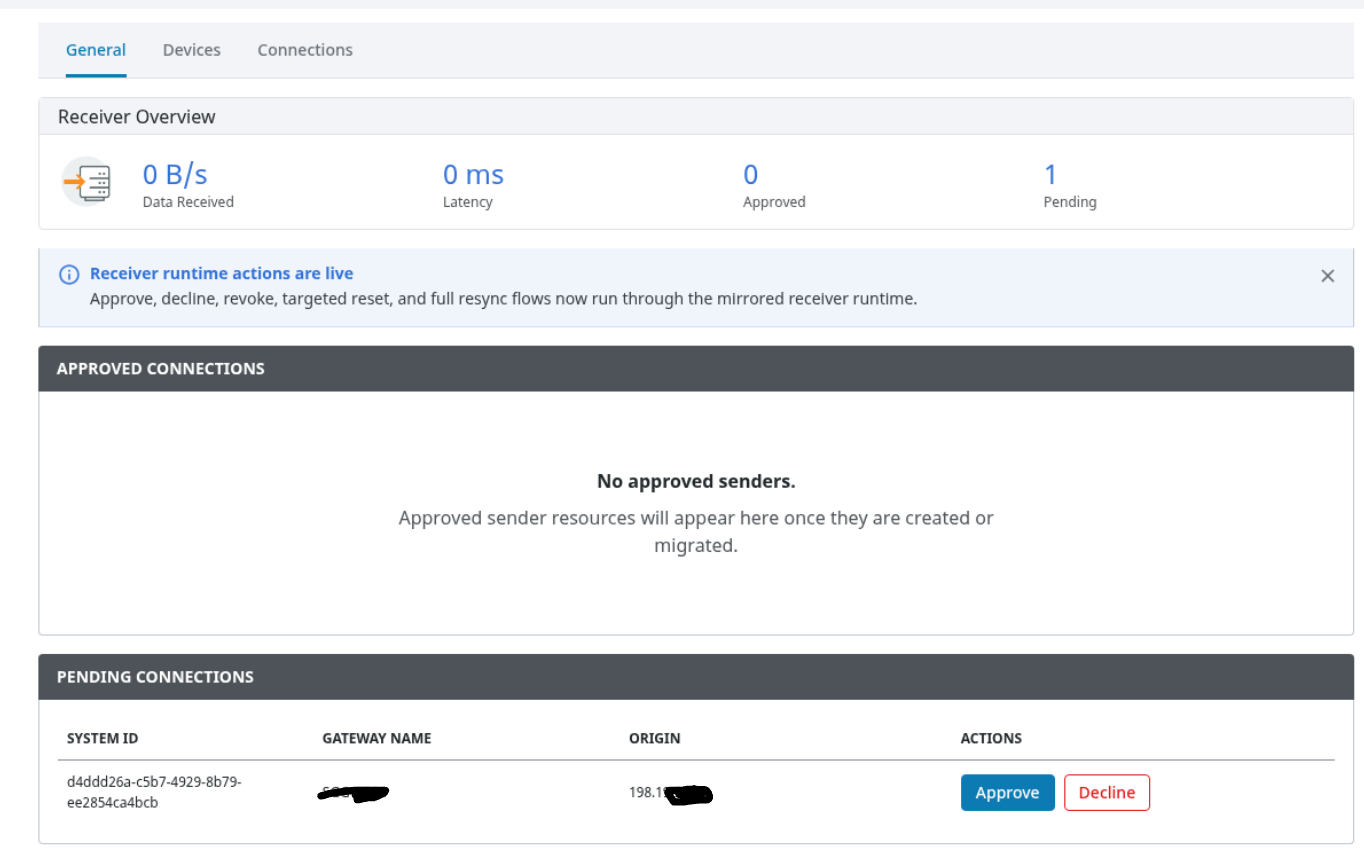
Approve the pending sender from the receiver status page.

-
Verify mirrored devices and connections from the sender and receiver status tabs.
Receiver Setup
On the receiving gateway, open the settings.
Set:
-
Enabled: on
-
Role: Receiving
Save the settings.
Then open the status page. The receiver should be ready for sender connections. When a sender connects for the first time, it appears as a pending sender on the General tab.
The receiver listens for senders at:
/system/mirror-receiver-ws
The sender connects to that endpoint through the receiver gateway's normal HTTP or HTTPS port.
Sender Setup
On the sending gateway, open settings page.
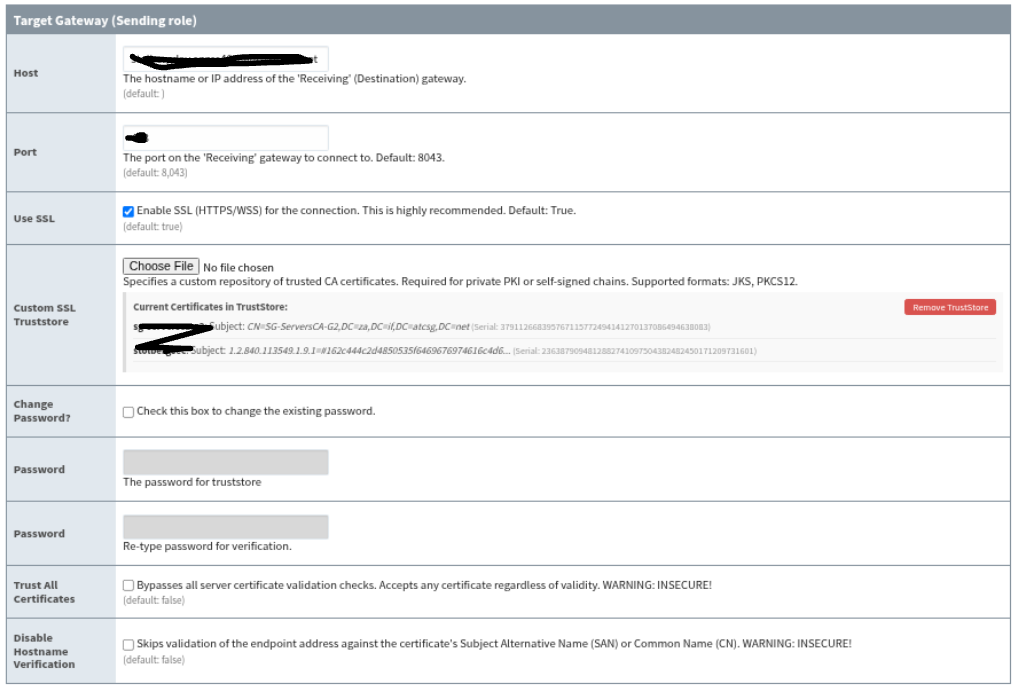
Set:
-
Enabled: on
-
Role: Sending
-
Host: receiver gateway hostname or IP address
-
Port: receiver gateway web port
-
Use SSL: on when connecting through HTTPS, off when connecting through HTTP
Typical Ignition ports are 8043 for HTTPS and 8088 for HTTP, but use the actual web port configured on the receiving gateway.
After saving, the sender connects to:
ws://<host>:<port>/system/mirror-receiver-ws
wss://<host>:<port>/system/mirror-receiver-ws
The sender status should move from disconnected or connecting to waiting for receiver approval.
SSL And Certificates
When Use SSL is enabled, the sender uses wss.
For testing, Trust All Certificates can be enabled so the sender accepts the receiver certificate without a custom trust store.
For production, prefer a trust store:
-
Enable Use SSL.
-
Leave Trust All Certificates off.
-
Upload a PKCS12 or JKS trust store that contains the receiver certificate chain or issuing CA.
-
Enter the trust store password if the file is password protected.
-
Save the settings.
Hostname verification is always enforced for SSL sender connections. The Host value must match the receiver certificate subject alternative name or certificate name. The legacy ignore-hostname-verification option is not available in the 8.3 sender path.
Critical naming and development environment conflict warning: You must blacklist any device connection on the sender gateway that shares an identical name with an existing connection on the receiver side, even if that connection is currently disabled.
The receiver module automatically attempts to generate a mirrored device connection using the exact name provided by the sender. If an existing connection on the receiver side shares that same name and it is not filtered out using a blacklist or whitelist, the module can throw duplicate-name errors on the receiver. Ensure names are unique across environments or strictly filter them out.
Device Mirroring Filters
On the sender, use the OPC UA Devices settings to control device mirroring.
Set:
-
Enable OPC UA Devices: on to mirror OPC UA devices
-
Whitelisted OPC UA Devices: optional line-separated list of exact device names to include
-
Blacklisted OPC UA Devices: optional line-separated list of exact device names to exclude
Filter rules:
-
Names are exact after trimming whitespace.
-
Leave the whitelist empty to include all eligible devices.
-
The blacklist wins over the whitelist.
-
Put one device name on each line.
-
Wildcards and partial matches are not supported.
The sender reads device inventory from Ignition's com.inductiveautomation.opcua/device resources. Device status follows the sender gateway's live device health. Disabled devices can appear with Disabled status but do not produce live values.
OPC Connection Mirroring Filters
On the sender, use the OPC Connections settings to control OPC UA client connection mirroring.
Set:
-
Enable OPC Connections: on to mirror external OPC UA client connections
-
Whitelisted OPC Connections: optional line-separated list of exact OPC connection names to include
-
Blacklisted OPC Connections: optional line-separated list of exact OPC connection names to exclude
Filter rules are the same as device filters. The sender ignores Ignition's internal OPC UA server connection, so only external OPC UA client connections are mirrored.
The receiver creates local mirrored OPC connections with the same names as the sender connections. Avoid name collisions on the receiver. The receiver also needs a valid local OPC UA connection security template, normally provided by an existing Ignition OPC UA connection resource, so the module can create 8.3-shaped OPC connection resources.
Approving A Sender
Open the receiver status page at Services -> Plantformance -> Device Mirroring Status.
On the General tab:
-
Pending sender rows show sender system id, gateway name, and origin connection.
-
Click Approve to approve the sender.
-
Click Decline to reject the current pending connection without saving approval.
-
Click Revoke on an approved sender to delete its approval and disconnect it.
Approvals are persisted as named approved-sender configuration resources. A previously approved sender is auto-approved when it reconnects. The current UI manages approvals through the status page; there is no separate approved-senders editor page.
The receiver supports one active approved sender session at a time. Approving a new pending sender supersedes the currently approved live sender session.
Verifying Mirroring
Use the status page on both gateways.
On a sender
-
General shows connection state, receiver host/port, latency, and bytes per second.
-
Devices shows the sender-side device inventory being mirrored.
-
Connections shows the sender-side OPC connection inventory being mirrored.
-
Inspect opens latest node details for a selected device or connection.
On a receiver
-
General shows pending and approved senders.
-
Devices shows virtual mirrored devices created on the receiver.
-
Connections shows mirrored OPC connections created on the receiver.
-
Inspect opens latest receiver-side node details.
Node detail rows show:
-
path
-
value
-
last timestamp
-
status
The node detail view shows the latest known sample only. It is not a history view.
Reading Mirrored Values
Mirrored device values are exposed through the receiver's local OPC UA device tree under the virtual mirrored device.
Mirrored OPC connection values are exposed through receiver-side OPC connections that point to local loopback OPC UA servers. The mirrored connections are read-only. The module preserves sender namespace and node-id layout where possible, including ns= and nsu= identifiers.
Do not manually edit generated mirrored devices or mirrored OPC connections during normal operation. Use receiver reset/resync actions when mirrored resources need to be recreated.
Reset And Resync
Receiver reset actions are available from the receiver status page when the user has write permission and an approved sender is connected.
Available actions:
-
Reset on a receiver device row removes that local mirrored device and requests a full device resync from the sender.
-
Reset on a receiver connection row removes that local mirrored OPC connection and requests a full connection resync from the sender.
-
Request full device resync asks the sender to republish all mirrored device inventory.
-
Request full connection resync asks the sender to republish all mirrored OPC connection inventory.
Use targeted reset when one mirrored item is stale or needs to be recreated. Use full resync when the receiver inventory appears out of sync with the sender.
If a source device or source connection is removed from the sender, the receiver keeps the mirrored item visible with Deleted status and marks node values out of service. Reset/resync removes the local item and only recreates it if the sender still publishes it.
Restart And Disconnect Behavior
When the sender disconnects, the receiver preserves mirrored devices and mirrored OPC connections and marks them Offline. Live values stop updating until the sender reconnects and republishes status and tag traffic.
When the receiver restarts, it rehydrates persisted mirrored device names and mirrored OPC connection definitions. Live node snapshots and fresh bytes-per-second metrics depend on the sender reconnecting and sending new data.
When the module is disabled, license-blocked, or switched away from Receiving, persisted mirrored definitions are preserved for later rehydration. Explicit reset actions remove the targeted mirrored state. Revoking an active sender removes its approval, disconnects it, and clears the live mirrored state for that session.
Troubleshooting
No pending sender appears on the receiver
-
Confirm the receiver is enabled and set to Receiving.
-
Confirm the sender is enabled and set to Sending.
-
Confirm sender Host, Port, and Use SSL match the receiver gateway.
-
Check firewall and routing from sender to receiver.
-
For SSL, confirm the receiver certificate is trusted and the hostname matches the certificate.
Sender is waiting but no data appears
-
Approve the pending sender on the receiver.
-
Confirm Enable OPC UA Devices or Enable OPC Connections is enabled on the sender.
-
Confirm whitelist and blacklist entries exactly match sender device or connection names.
-
Confirm the source device or OPC connection is connected and enabled.
-
Confirm source OPC items are actively subscribed on the sender.
Mirrored device or connection does not appear on the receiver
-
Check the receiver gateway logs for creation failures.
-
Avoid receiver-side name collisions with non-mirrored devices or existing OPC connections.
-
For OPC connection mirroring, confirm the receiver has a valid local OPC UA connection or security template.
-
Use targeted reset or full resync from the receiver status page after fixing the underlying issue.
SSL connection fails
-
Check whether the sender is using
wssagainst the receiver HTTPS port. -
If using a trust store, confirm it is PKCS12 or JKS and contains the receiver certificate chain or issuing CA.
-
Confirm the trust store password is correct.
-
Confirm the configured host matches the receiver certificate name.
-
Use Trust All Certificates only as a temporary diagnostic or test setting.
Status actions are missing
-
Confirm the current user has write permission for the Device Mirroring status routes.
-
Read-only users can view status but cannot approve, decline, revoke, reset, or request resync.
Current UI Limitation
The settings page configures the singleton module settings. Approved senders are currently managed from the receiver status page, not from a separate named-resource configuration page.