
Prerequisites
Before installation, confirm that:
-
The target Gateway meets the declared Ignition and Java requirements.
-
You have the Gateway administrative access required to install or upgrade modules.
-
The module artifact comes from a trusted source and follows your organization's module-signing and change-control procedures.
-
Administrators who will use the module have the required Gateway access and permissions.
If scheduled delivery will be used, also confirm that the Gateway can reach the approved destination and that the destination is prepared to receive the selected report format.
Installing the module
-
Obtain the approved Gateway Analyzer module artifact.
-
In the Ignition Gateway web interface, open the standard module management area.
-
Select the standard action to install or upgrade a module.
-
Upload the artifact and complete the Ignition installation workflow.
-
Review the Gateway logs for module startup messages or errors.
-
Open Diagnostics > Gateway Analyzer and confirm that the module pages are visible.
No separate installer, database migration, license-key page, or external service setup is provided.
Initial configuration
-
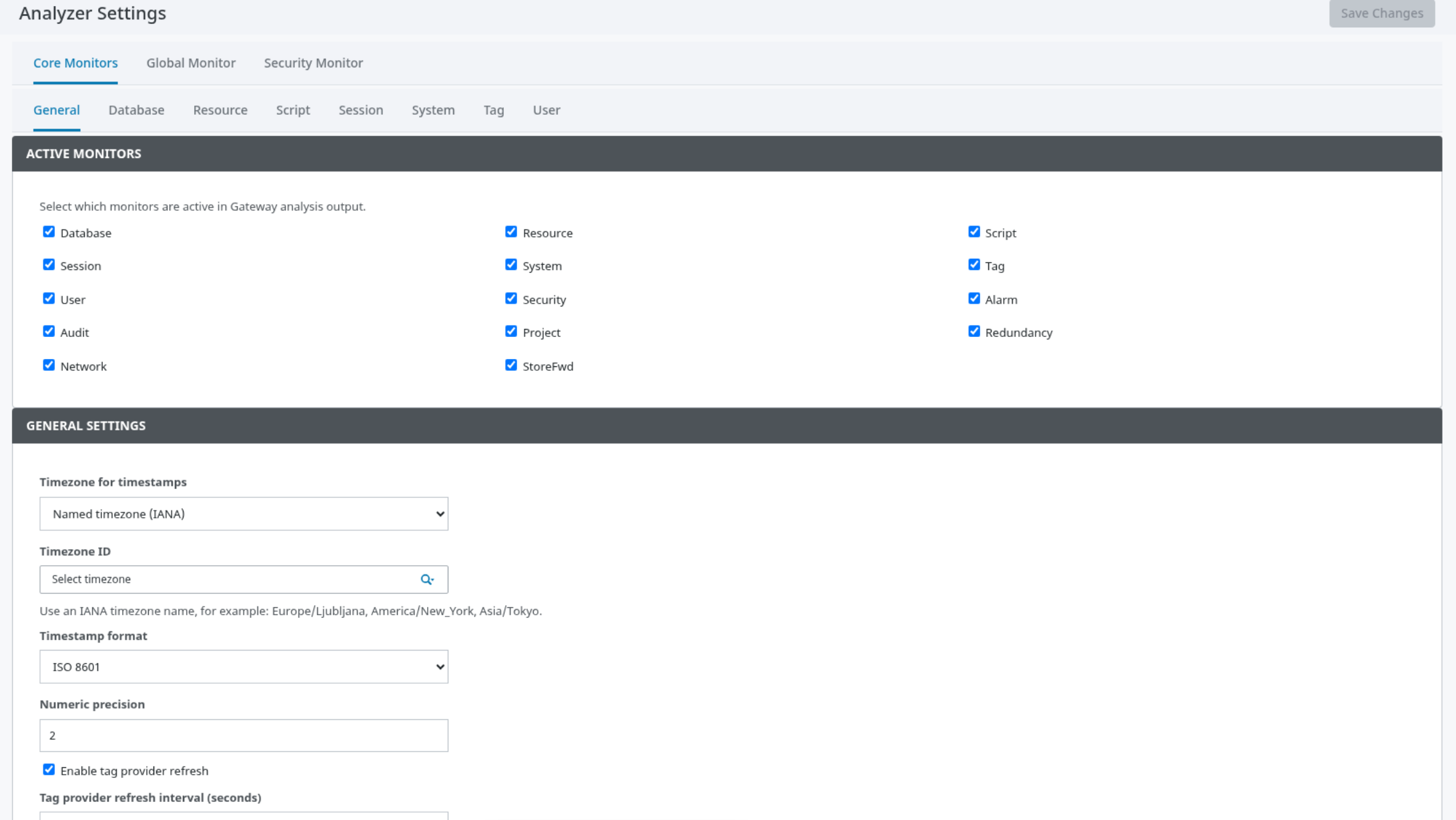
Open Diagnostics > Gateway Analyzer > Analyzer Settings.
-
In General, review the active diagnostic areas in ACTIVE MONITORS.
-
Configure only the diagnostic areas, filters, and output options required for the environment.
-
Review snapshot and tag-provider refresh options according to your operations policy.
-
Select Save Changes.
-
Open Summary and refresh the analysis to verify that results are available.
Use the configuration import/export controls only with reviewed configuration files from a trusted source. Imported settings can affect collection scope, report behavior, and optional delivery.
Configuration roles
Gateway administrator
The Gateway administrator installs the module, controls access, configures diagnostic scope, manages scheduled delivery, and reviews operational logs.
System integrator or automation engineer
The integrator can use the exposed analysis results, managed tags, or Gateway scripting functions in an approved project or automation workflow. Integrators should avoid using the module output as an uncontrolled substitute for Gateway security, alarming, or backup procedures.
Connection / Integration setup
Scheduled delivery is configured in Analysis Export. Select the destination type, enter the approved destination details, choose the required report format, enable delivery, and save the configuration.
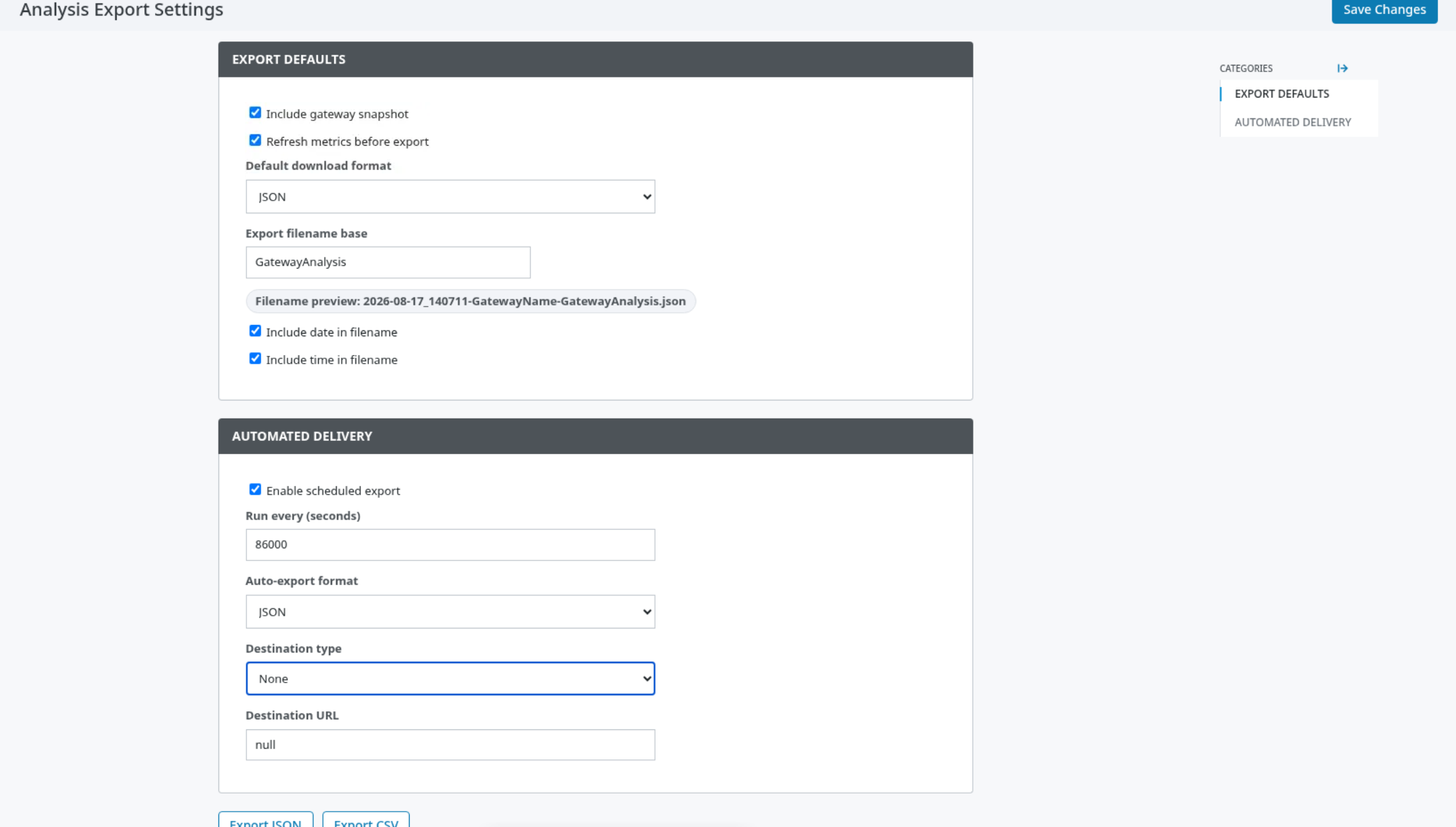
Use secure, organization-approved transport where available. Keep destination credentials, tokens, and addresses out of source control, screenshots, and shared documentation. Validate delivery with a non-sensitive report before enabling it for regular operation.
Security recommendations
-
Grant Gateway access according to least-privilege principles.
-
Limit external consumers to the minimum analysis data they need.
-
Use trusted certificates and secure transport for production Gateway and destination communication.
-
Protect export files because they can contain operationally sensitive diagnostic information.
-
Prefer approved credential-management practices over embedding sensitive values in configuration.
-
Review exported content before sharing it outside the organization.
Verification
After configuration:
-
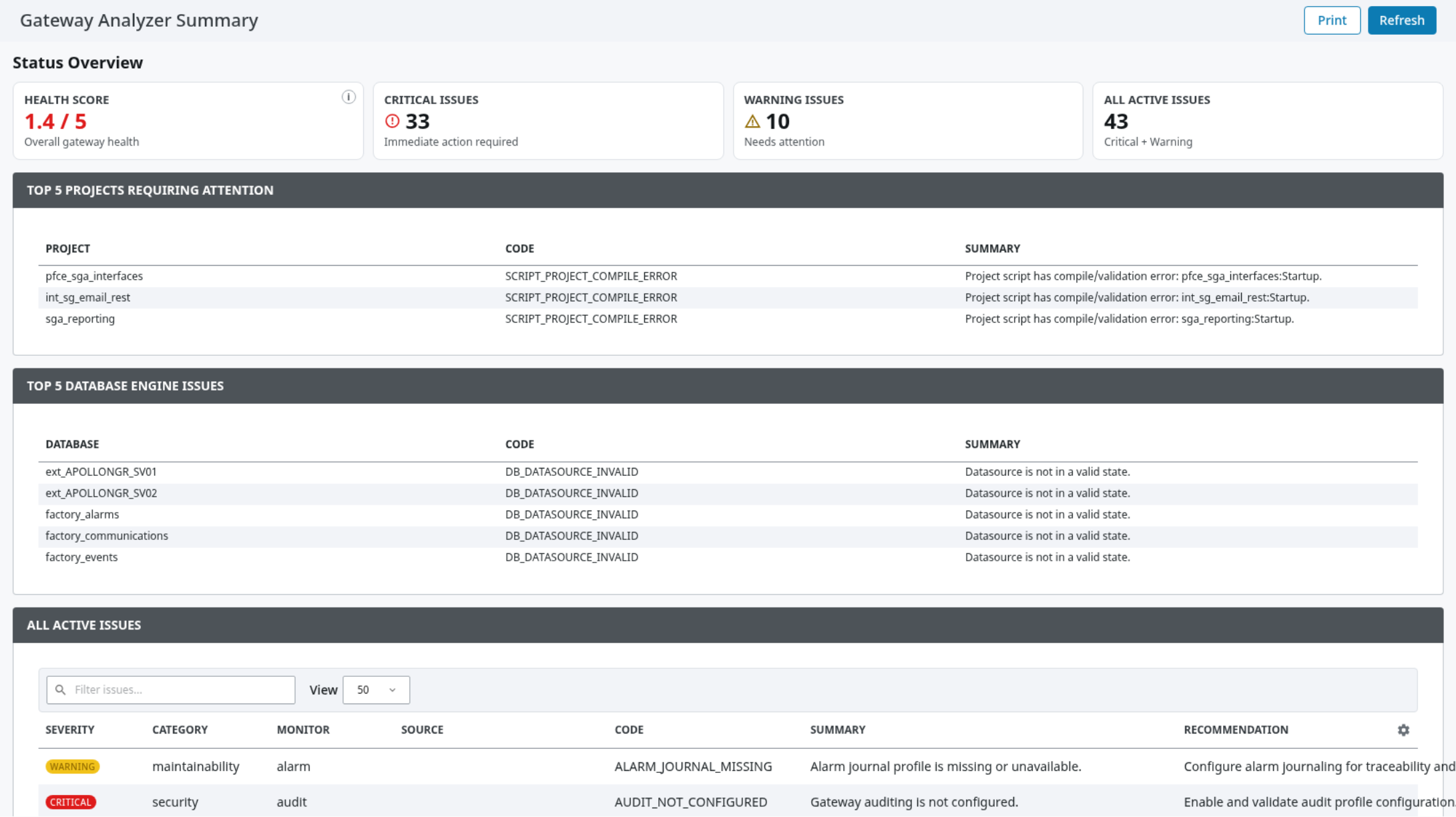
Open Summary and refresh the analysis.
-
Confirm that the expected diagnostic areas have usable status information.
-
Open Analysis and verify that expected information is visible.
-
Create a controlled JSON or CSV export and inspect it for expected content and proper sanitization before distribution.
-
If managed tags or scheduled delivery are enabled, verify the result through the normal Gateway tag browser or destination-side monitoring.
Updating the module
Use the standard Ignition module upgrade workflow. Before production upgrades, export or record the current module settings, test the upgrade in a representative non-production environment, and verify the Gateway Analyzer pages and integrations after the upgrade.
Uninstallation considerations
Before disabling or uninstalling the module, identify Gateway projects, scheduled workflows, reports, and external consumers that depend on Gateway Analyzer output. Removing the module makes its pages, scripting functions, managed tags, and integration output unavailable.