
1. Routine Gateway health review
Scenario
An administrator needs a repeatable way to review current Gateway health signals before maintenance, after a configuration change, or during regular operations.
How the module helps
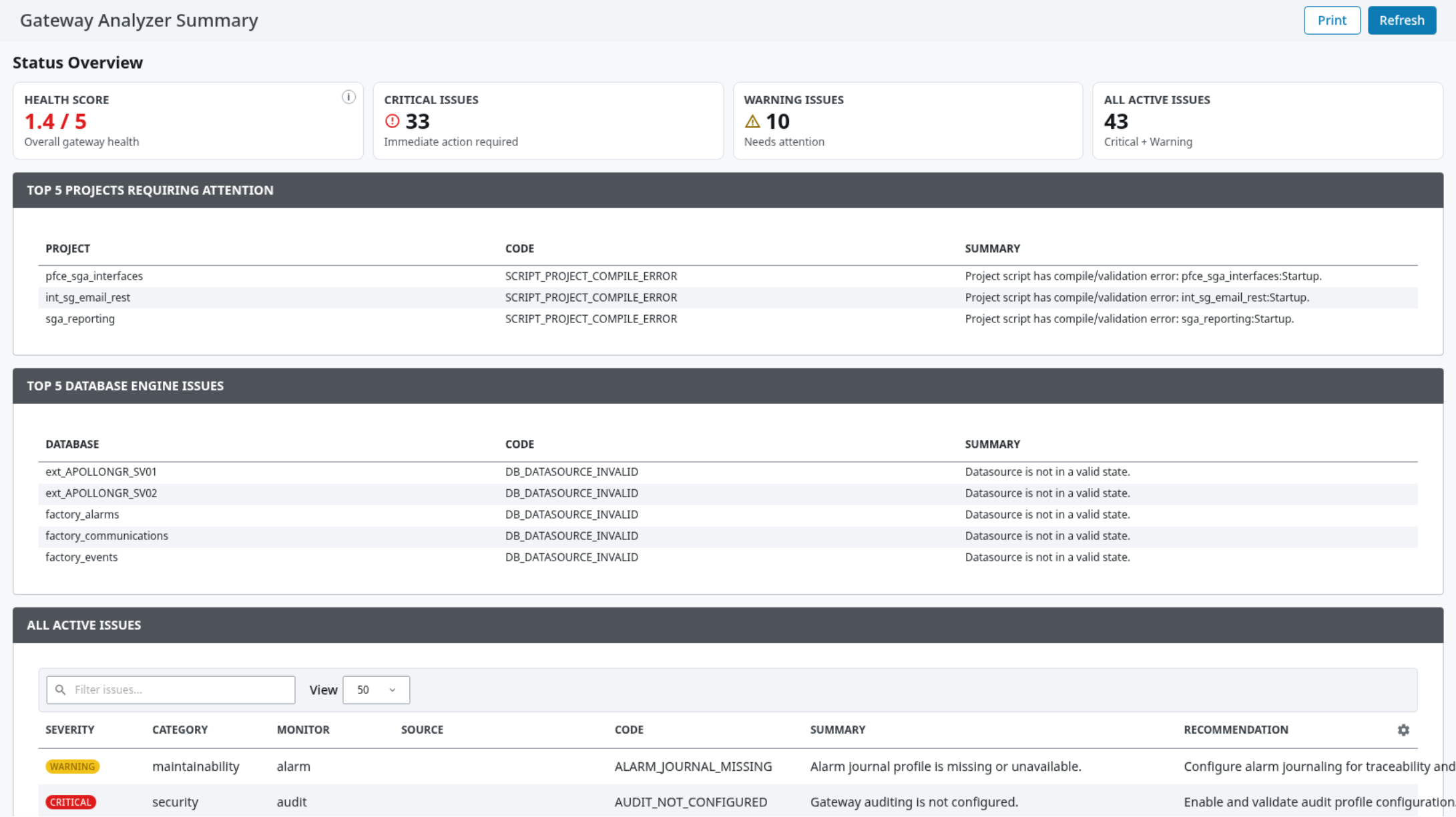
The Summary page combines selected diagnostics into an operational overview and shows active findings. The Analysis page provides additional context for the diagnostic areas that contributed to the result.
Typical workflow
-
Open Diagnostics > Gateway Analyzer > Summary.
-
Refresh the current analysis when a new collection is required.
-
Review the health summary and active findings.
-
Open Analysis to inspect the relevant diagnostic area.
-
Use normal Gateway administration procedures to validate and address the underlying condition.
2. Create a support or engineering report
Scenario
A system integrator or support engineer needs a structured diagnostic package for an internal review or approved support case.
How the module helps
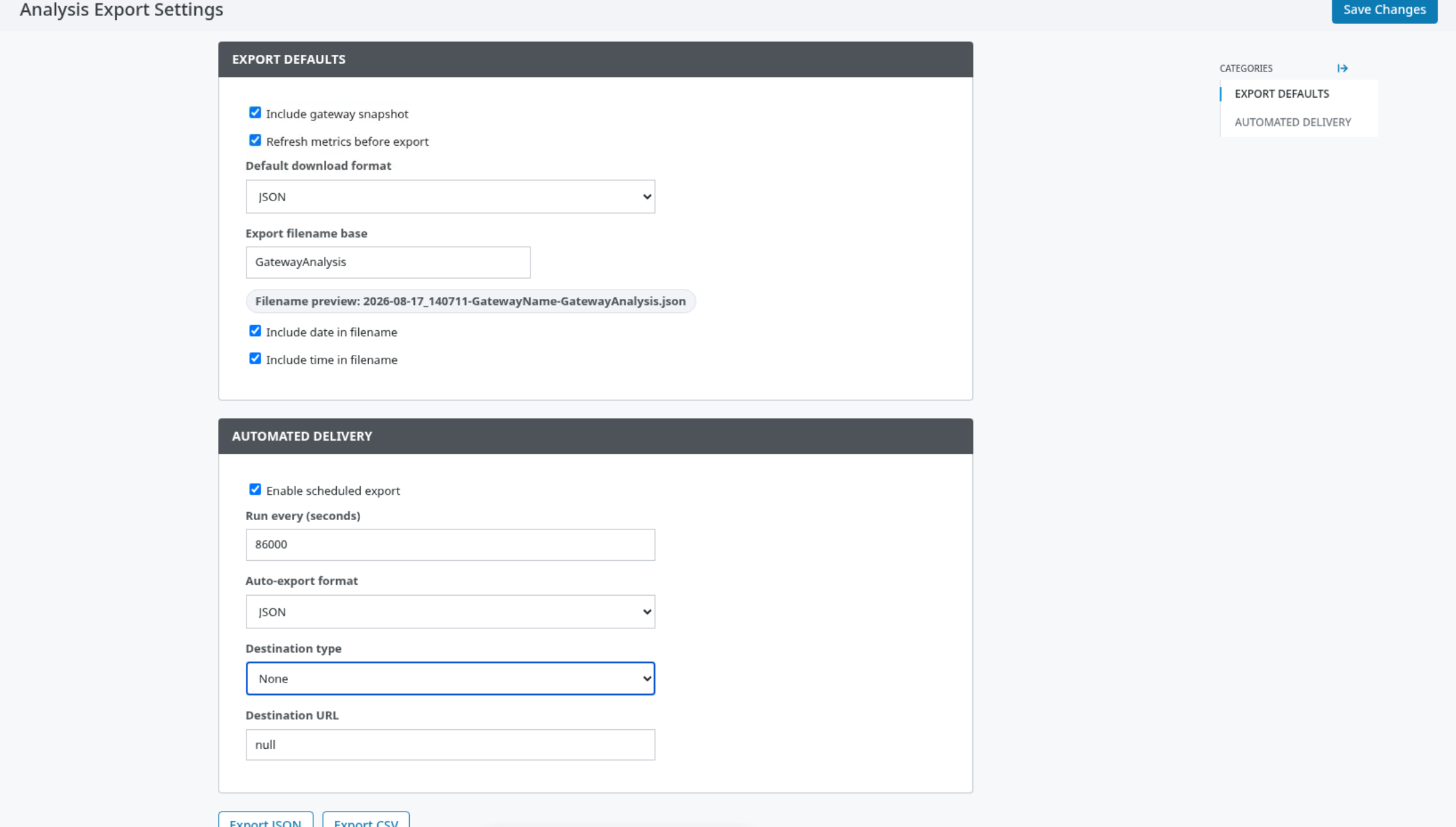
The module creates JSON and CSV-based report exports from the selected analysis scope.
Typical workflow
-
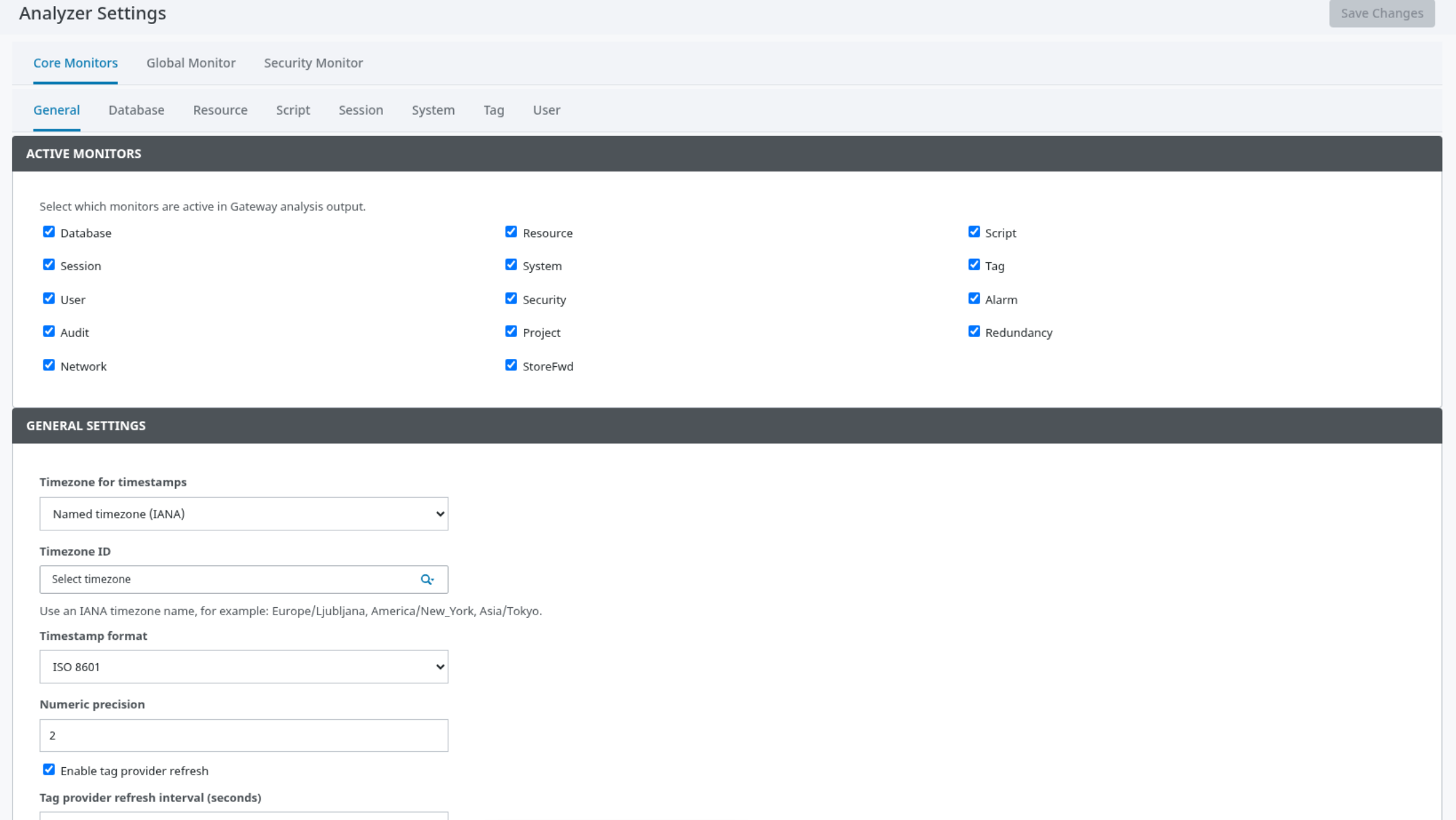
Confirm the appropriate diagnostic areas are enabled in Analyzer Settings.
-
Open Analysis Export.
-
Choose the required export format.
-
Generate the report and store it in an approved location.
-
Review the output for sensitive operational content before sharing it.
3. Integrate Gateway diagnostics with an operational workflow
Scenario
An operations team needs Gateway analysis information in an existing reporting, ticketing, monitoring, or automation workflow.
How the module helps
Gateway Analyzer provides authenticated programmatic access to analysis results and can schedule report delivery to supported destination types.
Typical workflow
-
Define the minimum diagnostic scope needed for the workflow.
-
Create a least-privilege Gateway access approach with the responsible administrator.
-
Configure the external consumer or scheduled delivery using approved network and security controls.
-
Validate the result in a non-production or controlled environment.
-
Monitor Gateway logs and destination-side processing after deployment.
4. Use analysis values in an Ignition project
Scenario
An Ignition project needs to display or react to selected Gateway Analyzer values.
How the module helps
The managed diagnostic tag provider exposes module-generated diagnostic and analysis values for Gateway projects. Gateway scripts can also obtain analysis output when scripting is appropriate.
Typical workflow
-
Confirm that the managed tag provider is updating successfully.
-
Browse the provider to identify the available output categories.
-
Bind or read only the values needed by the project.
-
Treat values as diagnostic indicators, not as a replacement for source-system data quality or alarm design.
5. Limit diagnostic collection for a focused review
Scenario
An administrator needs to focus on one area, such as datasources, tags, sessions, or store-and-forward behavior, without collecting every available category.
How the module helps
The module allows administrators and approved integrations to select diagnostic areas, filters, and output options appropriate to the review.
Typical workflow
-
Open Analyzer Settings.
-
Enable the required diagnostic areas and configure applicable filters.
-
Save the configuration.
-
Refresh analysis and review the selected output.
-
Restore the broader configuration when the focused review is complete, if required by local operating standards.